How to Install Custom Wraps on Model Y
This guide explains how to prepare and load custom wrap files onto your Tesla Model Y. Follow these steps to ensure your PNG files work correctly in the Paint Shop app.
Which template fits my car?
- Check your front and rear lights to identify your model.
- The 2025+ Model Y (Juniper) features a full-width light bar across the front and rear.
- If you have a 2025+ Performance, note its distinct bumpers.
- For 2025+ Standard or Premium, choose the template matching your specific trim details.
Install in 3 steps
- 1Copy the PNG into a folder named Wraps on a USB drive (exFAT or FAT32).
- 2Plug the drive into your Tesla.
- 3Open Toybox → Paint Shop → Wraps and pick it.
Tips
- Ensure your PNG file is under 1 MB and between 512x512 and 1024x1024 pixels.
- Name your file using only letters, numbers, underscores, or hyphens, with a maximum of 30 characters.
- Format your USB drive as exFAT or FAT32, not NTFS, and create a folder named Wraps at the root.
- Plug the USB into your car and navigate to Toybox > Paint Shop > Wraps to select up to 10 designs.
FAQ
Which Model Y template should I download?+
Download the template that matches your car's year and trim. Use 'Model Y (2020–2024)' for older models. For 2025+ models, check for the full-width light bar to confirm it is a Juniper, then select Standard, Premium, or Performance based on your specific trim and bumper style.
Why won't my wrap file load in Paint Shop?+
Verify the file is a real PNG under 1 MB with dimensions between 512x512 and 1024x1024 pixels. Ensure the filename uses only letters, numbers, underscores, or hyphens and is 30 characters or less. Also, confirm your USB drive is formatted as exFAT or FAT32.
How many wraps can I load from a USB drive?+
You can load up to 10 wrap designs from a USB drive into the Paint Shop app. Place the PNG files in a folder named Wraps at the root of the drive before plugging it into your Model Y.
More Model Y wraps
Browse all Model Y wraps →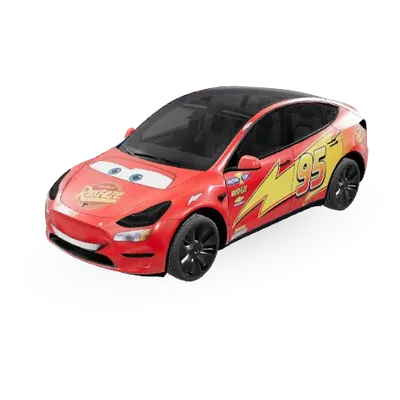
Flash MacQueen
Model Y (2020–2024)↓ 8,176
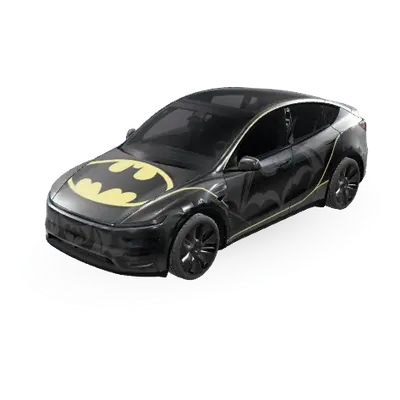
Batman
Model Y (2025+) Premium↓ 4,619
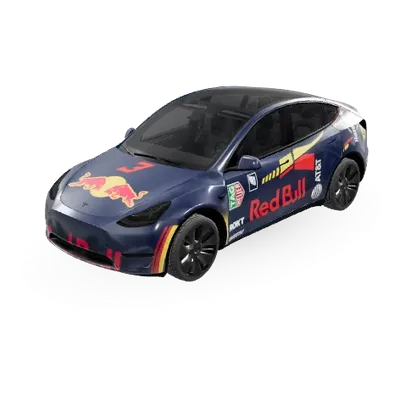
Red Bull Racing F1 - Max Verstappen 2026
Model Y (2020–2024)↓ 4,245
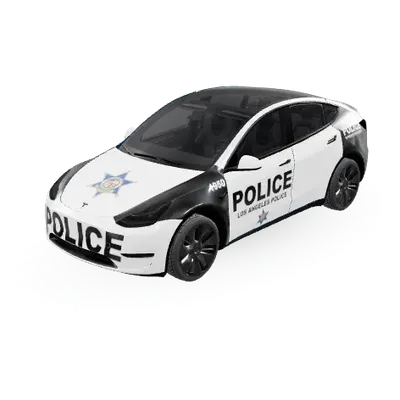
Police LA
Model Y (2020–2024)↓ 3,656
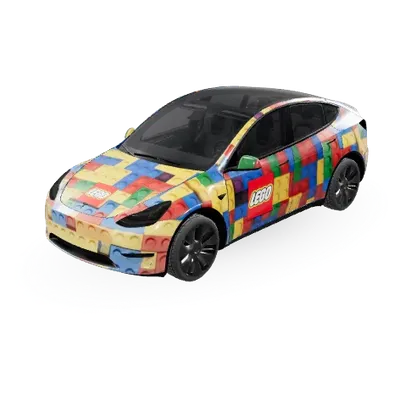
Lego
Model Y (2020–2024)↓ 3,306
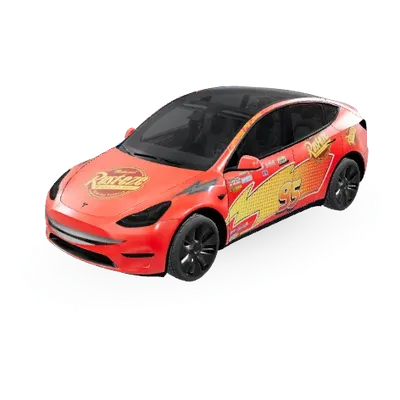
McQueen
Model Y (2020–2024)↓ 3,169
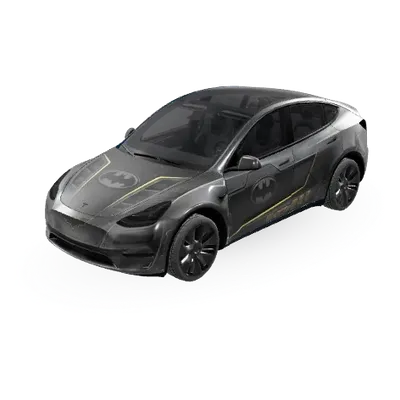
Batmobile
Model Y (2020–2024)↓ 2,965
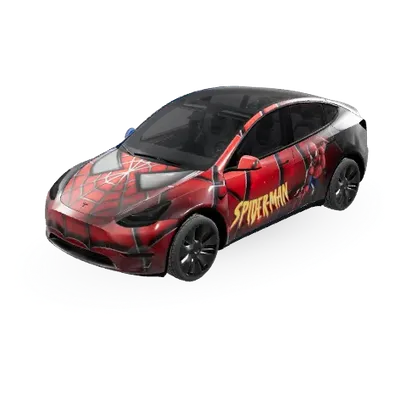
3D SPIDERMAN NEW
Model Y (2020–2024)↓ 2,892