· 3 min read
How to Upload a Custom Tesla Wrap from the Tesla App
Step-by-step guide to uploading a custom wrap from your phone with Tesla app 4.59.0 or later: file requirements, Creations → Wrap → Upload, troubleshooting and the USB fallback.
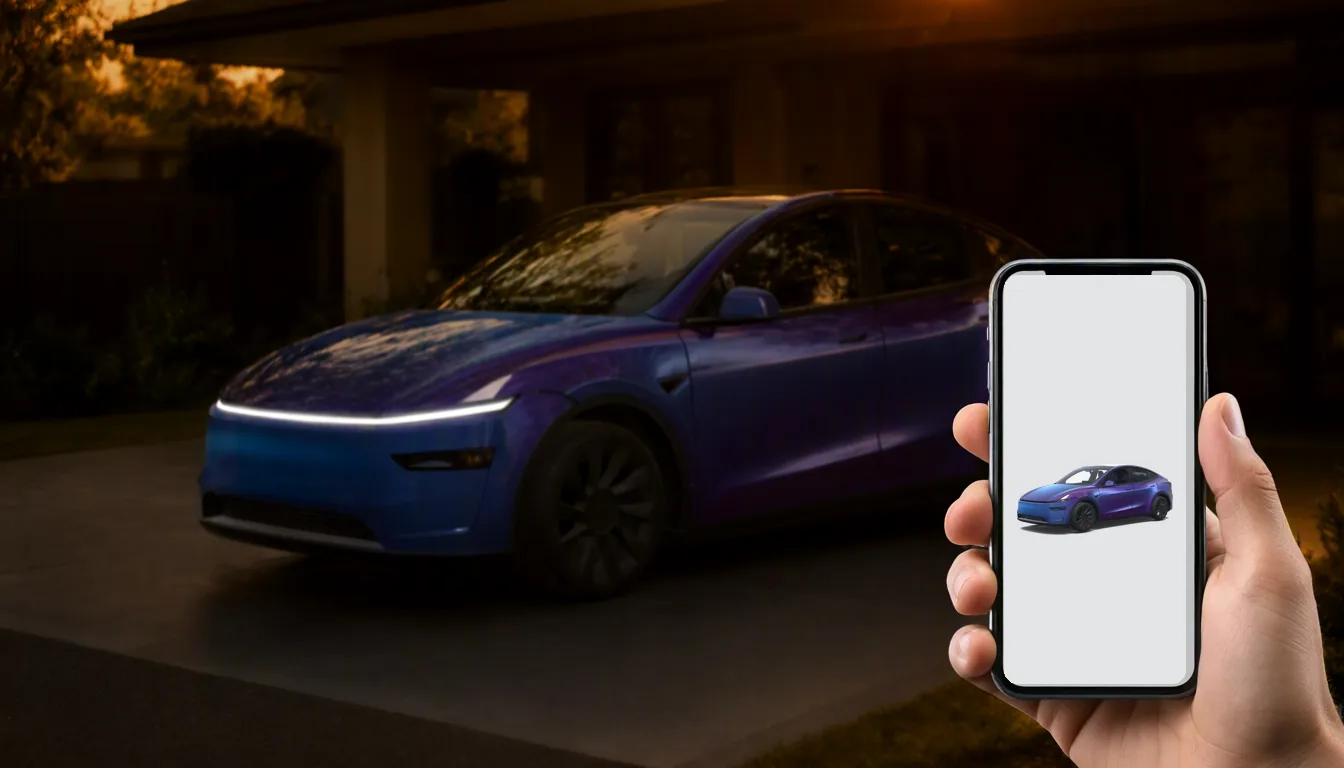
You no longer need a USB stick to change your Tesla's wrap. Since the 2026 Summer Update, you can upload a PNG straight from your phone. Here is how to do it, and what to check when it doesn't work.
Quick answer: update the Tesla app to version 4.59.0 or later, open your car, go to Creations → Wrap → Upload, and choose a compatible PNG: 512–1024 pixels square, 1 MB or less, with a short, simple file name.
File requirements
The rules are the same as for USB:
| Requirement | Rule | Practical tip |
|---|---|---|
| Format | PNG | It must really be a PNG, not a renamed JPEG |
| Dimensions | 512×512 to 1024×1024 | 1024×1024 keeps the most detail |
| File size | 1 MB or less | Check the exported file, not the project file |
| File name | Up to 30 characters | Letters, numbers, dashes, underscores and spaces only |
| Quantity | Up to 10 in the app | Delete an old wrap to add an eleventh |
Most importantly, the image must be made for your car's template. A square PNG that meets every rule will still look wrong if it was designed for a different model.
Step by step
Step 1: Get a compatible PNG
- Download one: browse the wraps.cc gallery and filter by your model. Every file already meets the rules above.
- Create one: describe the look you want in Studio and the AI paints it on your car's template.
- Convert one: if you found a design for another model, Fit my car in Studio moves it onto yours.
Step 2: Save it to your phone
Save the PNG somewhere the Tesla app can reach, such as Files, Downloads or Photos. If your phone adds something like (1) to the name, rename it, for example to wrap-2.png.
Step 3: Update the Tesla app
In the App Store or Google Play, make sure the Tesla app is version 4.59.0 or later. Features roll out in stages, so an up-to-date app is required but not always enough on day one.
Step 4: Open Creations → Wrap → Upload
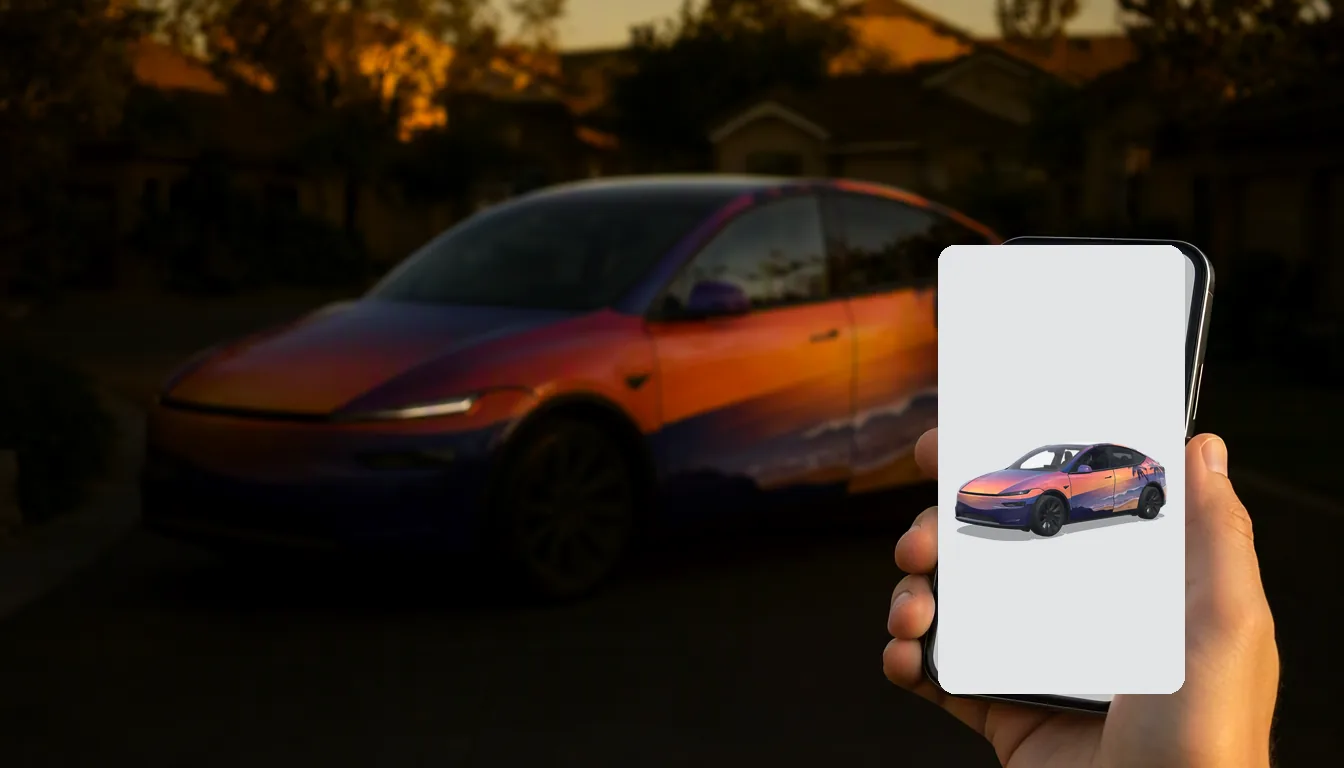
Select your car in the app, open Creations, choose Wrap, and tap Upload.
Step 5: Choose, preview and apply
Pick your PNG and check the preview, especially the hood, doors, roof and bumpers. If it looks stretched or shifted, the design was made for another template; go back and get the right version rather than trying to fix it in the app. When it looks right, apply it.
Troubleshooting
There's no Upload button
- Check the app version (4.59.0 or later).
- If you have several cars on your account, make sure the right one is selected.
- Install any software update waiting for the car.
- It may simply not have rolled out to your car, region or account yet.
The app rejects the image
- Make sure it is a real PNG.
- Width and height must both be between 512 and 1024 pixels.
- Bring the file under 1 MB.
- Shorten the name and remove brackets, emoji and other special characters.
The preview looks distorted
Almost always the wrong template. Choose a design made for your exact model and year, or convert it with Fit my car.
USB still works
If the app option has not reached you yet, USB is still fully supported:
- Format a USB drive as exFAT or FAT32 (not NTFS).
- Create a folder named
Wrapsat the root. - Copy up to 10 PNG files into it.
- Plug it into the car and open Toybox → Paint Shop → Wraps.
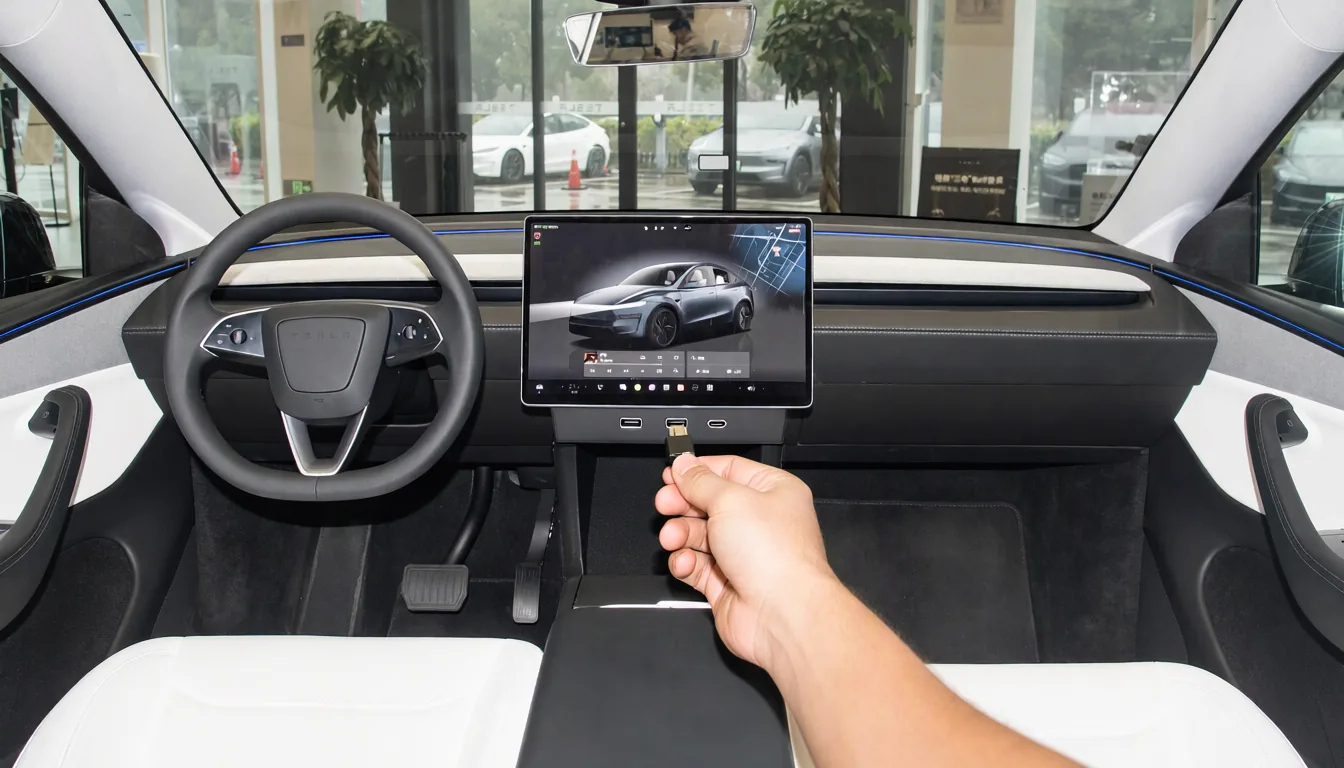
The Paint Shop install guide has the full details, and our troubleshooting article covers USB problems.
FAQ
Can I upload any photo? It may upload, but it will stretch unpredictably across the panels. Use artwork made on your car's template.
Does wraps.cc upload to my car directly? No. wraps.cc gives you the PNG; you upload it in the Tesla app or by USB, so you stay in control.
512 or 1024 pixels? 1024×1024 keeps more detail, as long as the file stays under 1 MB.
Popular Tesla wraps
See all →
Find your next wrap
10,000+ free Tesla wraps, or let AI design one for your car.