· 4 min read
Tesla Paint Shop Not Working? How to Fix Custom Wraps That Won't Show
A complete troubleshooting guide for Tesla Paint Shop custom wraps: USB format, the Wraps folder, PNG size and name rules, app upload problems, and wraps that look distorted on the car.
Paint Shop is either effortless or maddening. When it works, your wrap appears in seconds. When it doesn't, the car gives you almost no explanation. This guide lists every common cause, in the order worth checking.
How Paint Shop works
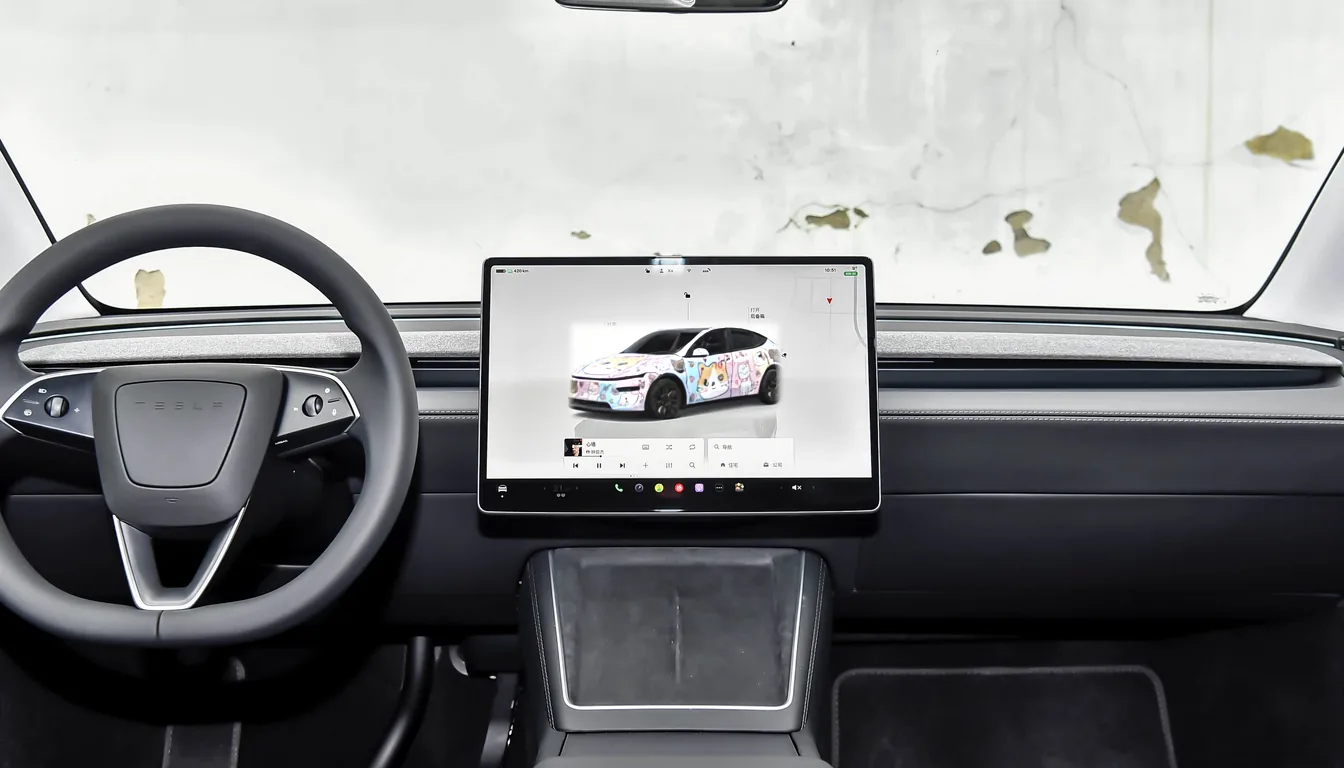
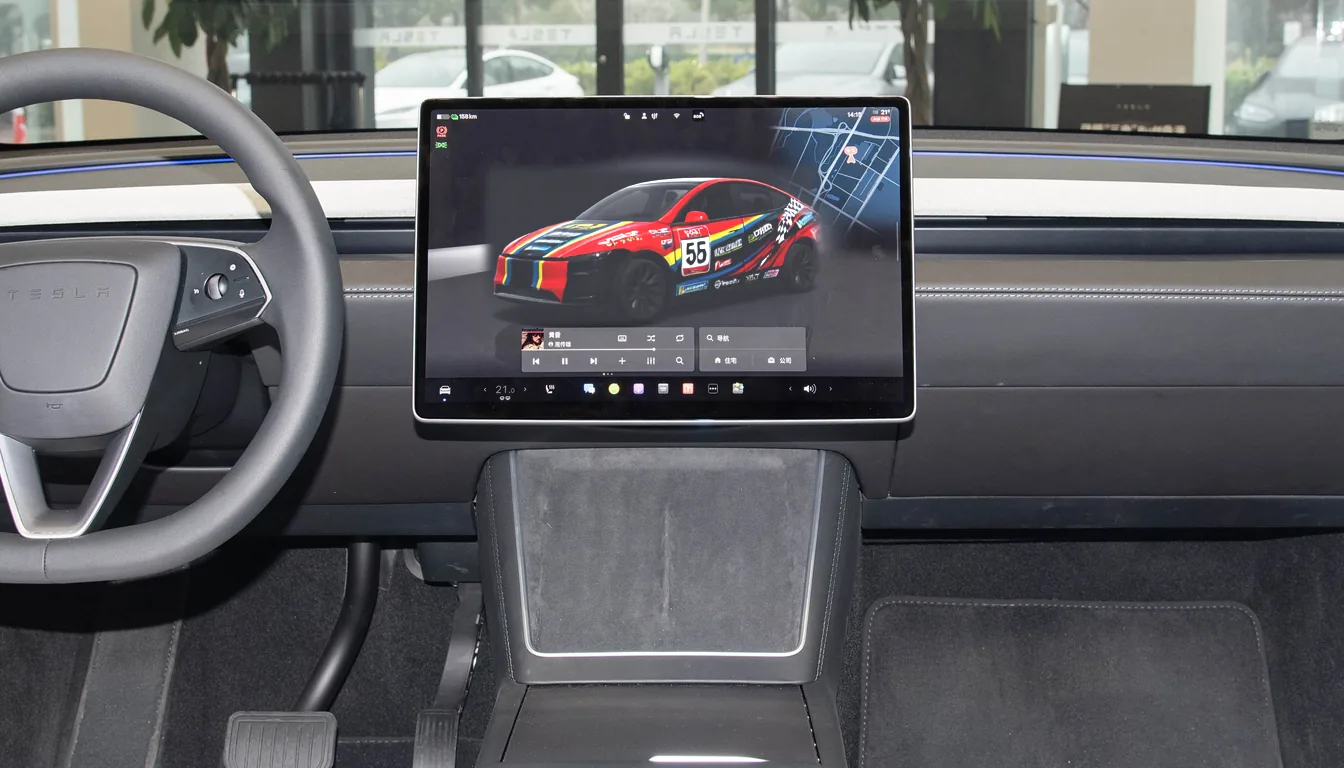
Paint Shop lives in Toybox on the center display. It takes compatible PNG files and applies them to the 3D model of your car. To find it, tap the Toybox icon, open Paint Shop, then the Wraps tab. If you do not see it, install the latest software update offered to your car.
There are two ways to get files to it:
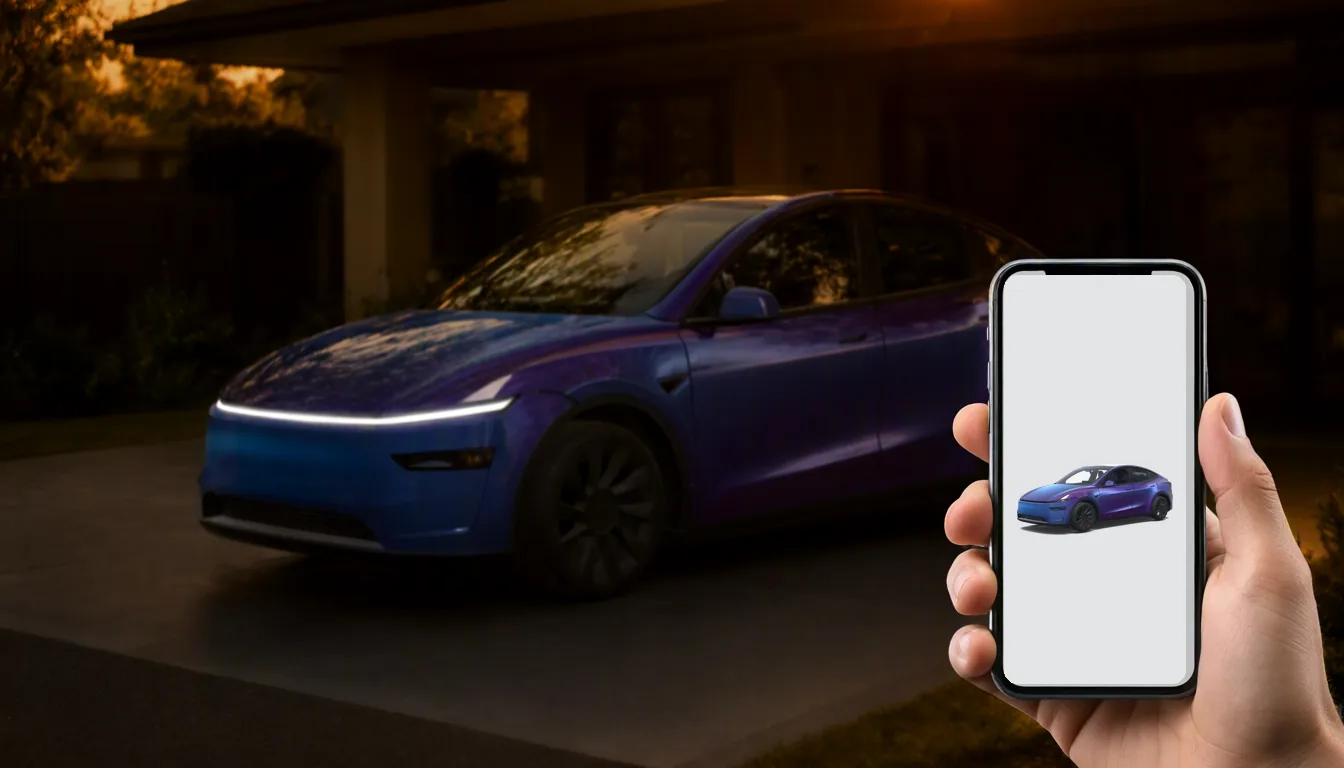
- Tesla app (4.59.0 or later): Creations → Wrap → Upload
- USB drive with a
Wrapsfolder
If the app route is available to you, try it first. It skips every USB problem below. Our mobile upload guide walks through it.
Checklist: the wrap doesn't appear at all
1. The USB drive format
This causes most failures. Use exFAT or FAT32 (on a Mac, "MS-DOS (FAT)" also works). NTFS is not supported. If the drive came formatted for Windows, reformat it.
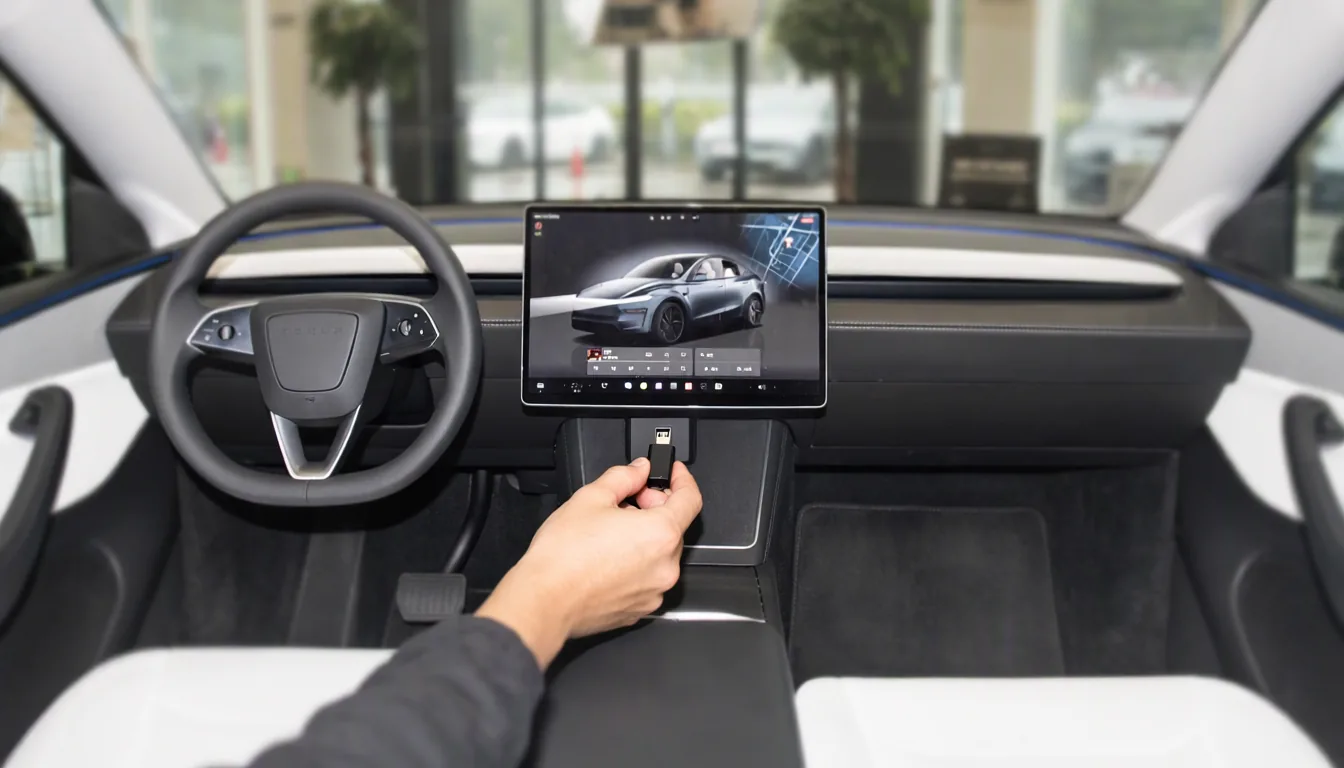
Also avoid using a drive that holds map or software update files, or one you use for Dashcam/Sentry recordings. A small, dedicated stick is the safest choice.
2. The folder name
At the root of the drive, create a folder named exactly Wraps, with a capital W and an s. Not wraps, not Wrap, not TeslaWraps, and not inside another folder. Paint Shop does not look into subfolders.
3. The file format
The file must be a real PNG. A JPEG or WebP renamed to .png will be ignored. If in doubt, open it in an image editor and export it as PNG again.
4. Size and file size
The image must be between 512×512 and 1024×1024 pixels and no larger than 1 MB. Large or very detailed designs can go over 1 MB at 1024 pixels; compress them or reduce the colors.
5. The file name
Keep it to 30 characters or fewer, using only letters, numbers, dashes and underscores. Watch out for names your phone or browser adds automatically, like wrap (1).png. Rename to something like wrap-1.png.
6. The number of files
Paint Shop loads up to 10 wraps. Remove extras if you have more.
7. Restart and update
If everything above checks out, restart the touchscreen (hold both steering wheel scroll buttons until the screen goes black) and plug the drive in again. Also try a different USB port or a different stick; some cheap drives are unreliable.
Checklist: the wrap appears but looks wrong
Wrong template
This is the number one cause. A wrap made for the 2017–2023 Model 3 does not fit the 2024+ Model 3, and a 2020–2024 Model Y wrap does not fit the 2025+ Model Y. Every wrap on wraps.cc lists its template; check it against your car. You can also browse by model so you only see compatible designs.
Already have a design for the wrong model? Fit my car in Studio moves it onto your car's template panel by panel.
Rotated or flipped image
Some editors rotate or mirror an image on export. Compare your file with the original template; the orientation must match exactly.
Washed-out colors
The car adds lighting and reflections to the 3D model, so very light or pastel colors can look faded. Go slightly darker and more saturated.
Problems with the Tesla app upload
- No Upload button: update the Tesla app to 4.59.0 or later, make sure the right car is selected, and install any pending vehicle software. Features roll out gradually, so it may not have reached your car yet.
- Image rejected: the same file rules apply as for USB: a real PNG, 512–1024 pixels, 1 MB or less, and a short, simple file name.
- List full: the app holds up to 10 wraps. Delete an old one first.
Avoid the problems from the start
Wraps downloaded from the wraps.cc gallery are already real PNGs at the correct size and under 1 MB, and each one shows the template it fits. Wraps made in Studio are generated on your car's template and exported to the same rules.
FAQ
Does Paint Shop cost anything? No. It is built into the car, and the wraps on wraps.cc are free.
Can a wrap harm my car? No. It only changes the image on the screen and in the app.
Does the wrap stay after I remove the USB drive? The selected wrap stays applied. To switch to another custom wrap, plug the drive back in.
For the full requirement list and per-model steps, see the Paint Shop install guide.
Popular Tesla wraps
See all →
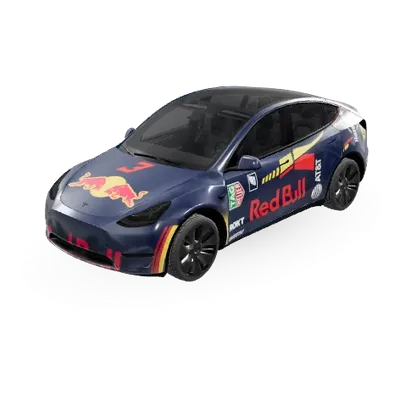
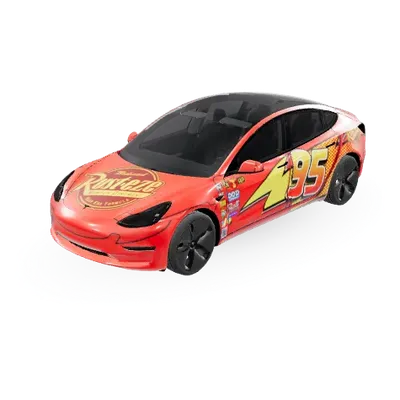
Find your next wrap
10,000+ free Tesla wraps, or let AI design one for your car.